

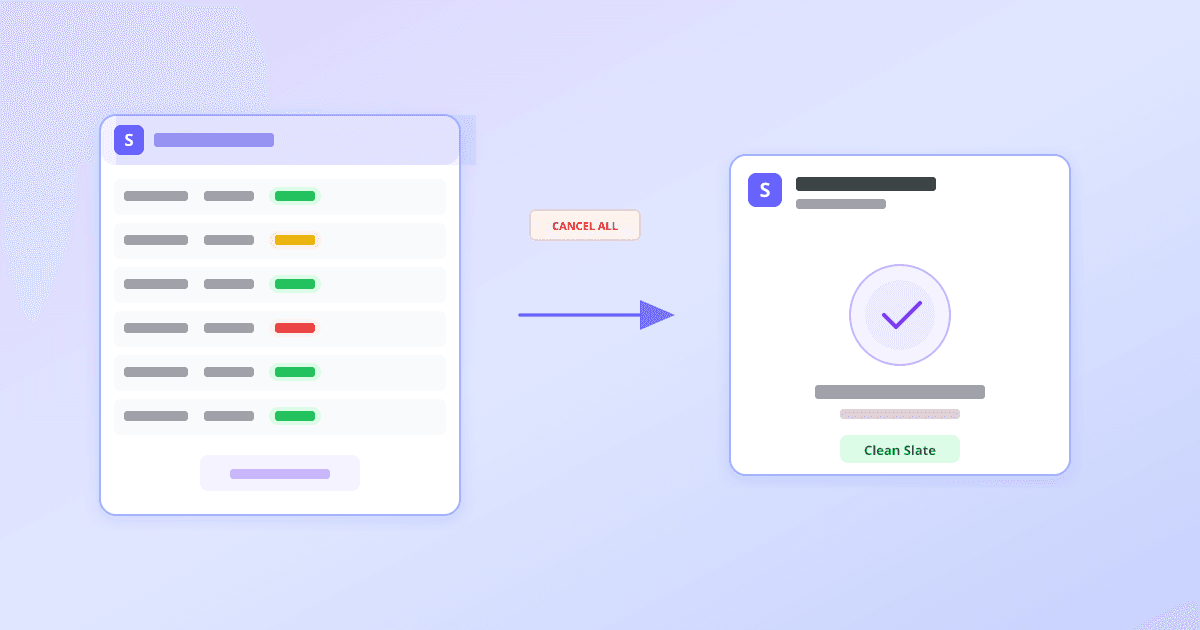
How to Bulk Delete All Stripe Test Subscriptions (Clean Slate in Minutes)
You've been building and testing your Stripe integration for weeks. You have hundreds — maybe thousands — of test subscriptions littering your Stripe test-mode dashboard. Clicking through each one to cancel it is not how you want to spend your afternoon.
Stripe doesn't give you a "delete all subscriptions" button. There's no multi-select in the Dashboard, no bulk cancel action, and no "reset subscriptions" option hiding in the settings. If you want a clean slate, you either write a script or find a tool that does it for you.
Why test subscriptions pile up
It's the natural consequence of doing things right. Every time you test a checkout flow, verify a webhook handler, or demo a feature to stakeholders, Stripe creates a real subscription object in test mode. Over time, those objects accumulate:
- Active test subscriptions from checkout integration tests that were never cleaned up.
- Trialing subscriptions from testing free-trial flows.
- Past-due and unpaid subscriptions from testing failed-payment scenarios.
- Paused subscriptions from testing pause/resume logic.
None of these are "wrong" — they're the artifacts of thorough testing. But they make your test dashboard noisy, your webhook logs hard to read, and your team's confidence in test data shaky. At some point, you need a clean reset.
What "delete all" actually means in Stripe
Stripe subscriptions can't be deleted in the traditional sense — they're canceled. A canceled subscription still exists as a record in Stripe (you can look it up by ID), but it stops billing and moves to a canceled status. For test-data cleanup, this is exactly what you want: stop all ongoing billing, clear the noise, and keep a historical trace if you need one.
Our bulk tool cancels subscriptions across all ongoing statuses: active, trialing, past_due, unpaid, and paused. That covers every subscription that could generate an invoice or appear as "live" in your dashboard.
The "cancel all" flow, step by step
- Open the bulk tool and choose Subscriptions. Go to the bulk uploader and select Subscriptions as the object type.
- Switch to "Cancel All" mode. Instead of uploading a CSV, choose the option to cancel all subscriptions. The tool will connect to your Stripe account and count how many ongoing subscriptions exist.
- Review the count and preview. Before anything is canceled, you see the total number of subscriptions that will be affected, plus a preview of the first several — including subscription ID, status, customer, and product. This is your chance to confirm you're pointing at the right environment.
- Type the confirmation phrase. To prevent accidental mass cancellation, you must type CANCEL ALL exactly. This is a deliberate friction point — you should be certain before proceeding.
- Execute. The tool cancels every ongoing subscription through the Stripe API. You get per-subscription results showing what was canceled and any failures.
Test mode vs. live mode: be absolutely sure
This is the most important thing in this entire post: check your API key before you run a bulk cancel.
Test-mode keys start with sk_test_ or rk_test_. Live-mode keys start with sk_live_ or rk_live_. If you are cleaning up test data, you must use a test-mode key. The confirmation step and preview help you verify, but the API key is the ultimate safeguard.
If you accidentally cancel live subscriptions, Stripe does not have an "undo" button. You would need to recreate each subscription manually or via API. So: test key for test cleanup, always.
Cancel immediately vs. cancel at period end
When canceling subscriptions, Stripe gives you two options that behave very differently:
- Cancel immediately stops the subscription right now. The customer loses access instantly, no further invoices are generated, and the subscription moves to a
canceledstatus. This is the right choice for test-data cleanup — there's no reason to let test subscriptions run out their billing period. - Cancel at period end keeps the subscription active until the current billing cycle finishes. The customer retains access for the time they've already paid for, and the subscription cancels automatically when the period expires. This is the friendlier option for production wind-downs where you want to honor existing commitments.
For test-data cleanup, immediate cancellation is almost always what you want. The bulk tool defaults to immediate cancel when using the "Cancel All" flow. If you need per-subscription control over the cancellation mode, use the CSV-based cancel flow instead — each row in your CSV can specify its own cancel_at_period_end value.
When to use "cancel all" vs. CSV cancel
The two approaches serve different scenarios:
- "Cancel all" is for full resets. You want every ongoing subscription gone — typically in test mode, after a testing sprint, or when onboarding a new team member who needs a clean sandbox.
- CSV cancel is for targeted operations. You have a specific list of subscription IDs to cancel — maybe a cohort, a retired plan, or a compliance request. See our guide on bulk canceling subscriptions from a CSV for that workflow.
Common use cases for bulk test-data cleanup
- Sprint resets. Your QA cycle just finished. Wipe test subscriptions so the next sprint starts from a known state.
- Demo prep. You're showing the product to a prospect or stakeholder. A dashboard full of test debris doesn't inspire confidence — clean it up in one operation.
- Onboarding. A new developer or ops team member gets access to the Stripe test account. Give them a clean slate instead of making them navigate someone else's test artifacts.
- Webhook debugging. Too many active subscriptions fire too many webhook events. Cancel the ones you're not actively testing to reduce noise in your logs.
- Migration dry runs. You're testing a migration path that creates subscriptions in bulk. After each test run, wipe the results and start fresh.
What about customers and other objects?
Canceling subscriptions does not delete the associated customers, products, or prices in Stripe. Those objects remain. If you also need to clean up customers, that's a separate operation.
For most test-data resets, canceling subscriptions is the highest-impact step: it stops billing noise, clears your subscription dashboard, and silences webhook chatter from ongoing subscriptions.
Why not write a script?
You absolutely can. Stripe's API makes it straightforward to list subscriptions by status and cancel each one. If you already have a scripting setup and are comfortable with the API, go for it.
But most teams don't have a "reset test subscriptions" script sitting around. And the person who needs the cleanup is often an ops lead, QA engineer, or product manager — not someone who writes API scripts regularly. A browser-based tool with confirmation steps and preview is a faster, safer path for ad-hoc cleanup.
Next step
If your Stripe test dashboard is cluttered with old subscriptions and you want a fresh start: open the bulk tool, select Subscriptions, switch to Cancel All, confirm the count, type the confirmation phrase, and execute. Your test environment will be clean in minutes.
For selective cancellations — specific IDs, specific cohorts — use the CSV-based cancel flow instead.
Have a large test environment with thousands of subscriptions? The tool handles pagination automatically — reach out to support at stripebulkupload@gmail.com if you hit plan limits and need a temporary increase.
Get started — upload your CSV in minutes
Validate your file, map columns to Stripe fields, and import customers without writing code.
Get started →