

How to Bulk Cancel Stripe Subscriptions from a CSV
You have a list of Stripe subscription IDs that need to be canceled. Maybe a cohort churned, a promotional plan expired, or you're sunsetting a product line. One by one in the Dashboard is not an option when the list runs into hundreds — or thousands.
Stripe's Dashboard lets you cancel subscriptions individually. Its API can do it programmatically, one call at a time. Neither path is built for "here is a spreadsheet of IDs — cancel them all." That gap is exactly what a CSV-driven bulk cancel fills.
When CSV-based bulk cancel makes sense
Not every cancellation job needs a CSV. If you're canceling one subscription because a customer asked, the Dashboard is fine. But once the job looks like any of these, a spreadsheet approach wins:
- End-of-life for a plan or product. You're retiring a tier and need to cancel every subscription tied to it — possibly across hundreds of customers.
- Churn cleanup. Support or finance hands you a list of subscription IDs that should have been canceled weeks ago, and you need to process them before the next billing cycle.
- Promotional wind-down. A time-limited offer is over, and the remaining subscribers need to be moved off or canceled by a deadline.
- Compliance or legal holds. A batch of accounts needs to stop billing immediately, documented in a file you can hand to your compliance team.
In every case, the workflow is the same: gather IDs, decide on immediate cancel vs. cancel at period end, run the batch, and confirm results.
What you need before you start
- A CSV file with a column named
idcontaining Stripe subscription IDs (they start withsub_). One ID per row. - Optional: a
cancel_at_period_endcolumn. Set totrueif the subscription should run until the current billing period ends, or leave blank / set tofalsefor immediate cancellation. - Optional: a
cancellation_details.commentcolumn. Attach a note to each cancellation — useful for audit trails. Stripe stores this on the subscription object. - A Stripe API key (secret or restricted) with subscription write permissions. Use a test-mode key while you're learning the flow.
If you don't already have a CSV, you can download our sample template from the bulk tool — choose Subscriptions as the object type and grab the sample file.
Step-by-step: cancel subscriptions from a CSV
- Prepare your CSV. Open your spreadsheet, ensure the header row includes
idat minimum, and save as CSV. If you pulled IDs from the Stripe Dashboard or API, paste them into theidcolumn. - Open the bulk tool and choose Subscriptions. Go to the bulk uploader and select Subscriptions as the object type. The tool knows you're doing a cancel operation for this object type.
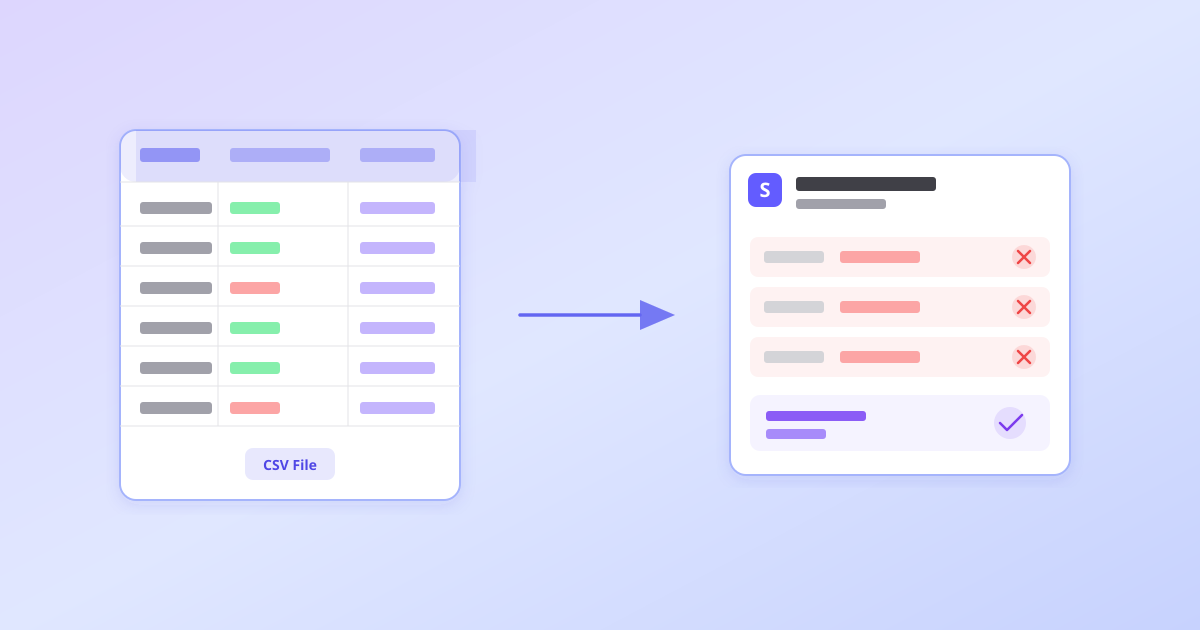
- Upload the CSV. The tool parses it into an editable grid so you can spot-check IDs and columns before anything touches Stripe.
- Review and validate. Validation checks that every
idvalue looks like a valid subscription ID and flags missing or malformed rows. Fix issues directly in the grid or go back to your spreadsheet. - Add your API key. Paste your Stripe secret or restricted key into the tool. The key is used only to talk to Stripe on your behalf during the cancel operation.
- Run the cancel. Confirm the row count and execute. Each subscription is canceled individually through Stripe's API — either immediately or at period end, depending on your CSV. You get per-row results showing which succeeded and which failed.
Immediate cancel vs. cancel at period end
This is the most important decision in your CSV. The two modes behave very differently:
- Immediate cancel (
cancel_at_period_endis blank orfalse): the subscription ends right now. No more invoices, no more access (unless your app grants a grace period). Use this when billing should stop today. - Cancel at period end (
cancel_at_period_endistrue): the subscription stays active until the current billing cycle finishes, then cancels automatically. Customers keep access until they've used what they paid for. This is the friendlier option for planned wind-downs.
You can mix both modes in the same CSV — each row can have its own value. That's useful when some customers negotiated a grace period and others should be cut off immediately.
What happens after the cancel runs
After execution, you get a results summary: total processed, succeeded, and failed. For each row, the tool reports whether the subscription was canceled immediately or scheduled for period-end cancellation.
Failed rows include the Stripe error message so you can diagnose and retry. Common failures include subscriptions that were already canceled, IDs that don't exist, or API key permission issues.
Tip
Export the results and keep them alongside your original CSV. If finance or compliance asks "which subscriptions were canceled and when," you have a paper trail.
Tips for large batches
- Start in test mode. Use Stripe test-mode keys and test subscription IDs to verify the flow before you cancel live subscriptions.
- Check your plan limits. Your account plan may cap how many rows you can process per operation. Check pricing if you're working with large files.
- Split by urgency. If some cancellations are time-sensitive and others are housekeeping, process the urgent batch first so you're not blocked by a slow file.
- Double-check IDs. A wrong subscription ID won't cancel someone else's subscription (Stripe returns an error for bad IDs), but it will show up as a failed row you need to investigate.
Why not just use the Stripe Dashboard?
The Dashboard works for one-off cancellations. But if you're canceling more than a handful, you face the same problem as manual customer entry: click, confirm, wait, repeat. There's no multi-select, no batch action, and no way to upload a list of IDs.
The API is powerful but requires code. If your team isn't shipping custom scripts for every operational task, a CSV-based tool bridges the gap: spreadsheet familiarity with API-level power.
Next step
Gather your subscription IDs into a CSV — even a single-column file with just the id header works. Open the bulk tool, choose Subscriptions, upload, validate, and cancel. You'll have confirmation of every cancellation within minutes.
If you need to wipe all subscriptions instead of a specific list — common when clearing out test data — see our guide on how to bulk delete all Stripe test subscriptions.
Need help building your cancellation CSV or handling edge cases? Reach out to our support team at stripebulkupload@gmail.com — we're happy to help you get the right file format.
Get started — upload your CSV in minutes
Validate your file, map columns to Stripe fields, and import customers without writing code.
Get started →